 ImageHelperKit
Image Measurement Tool Online
Measure the length, width, height, area, radius, or diameter of an object in a photo. Free, private, and no signup required.
Drag & drop, click to upload, or paste an image
Nothing is uploaded — it stays on this device.
draw a reference line → measure anything else in the frame
Three steps to a measurement
How to measure an object in a photo
A photo does not contain a real-world scale on its own. Add one known length, then use it to measure the rest of the image.
Upload or capture a photo
Choose a PNG, JPEG, or WebP file, paste an image from your clipboard, or take a photo with your camera. The file stays on your device.
Calibrate with a reference line
Draw a line along a ruler or another object whose length you know, then enter that length and its unit to set the scale.
Measure the object
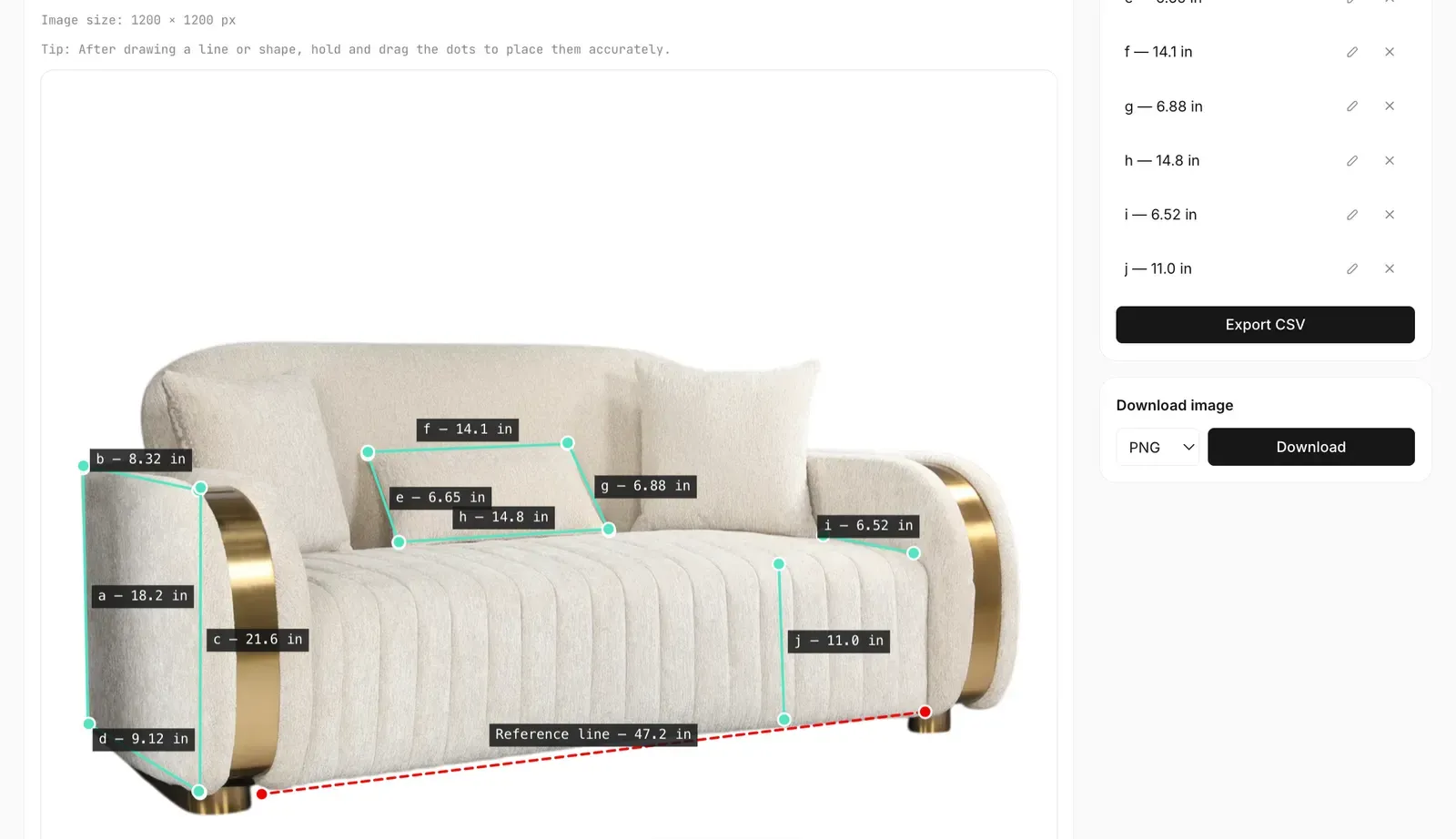
Draw a line for length, width, or height; trace a shape for area; or draw from the center of a circle to measure its radius and diameter.
Features
Measurements and editing tools in one place
Set the scale once, choose a measurement mode, and adjust each point on the image.
Length, width & height
Measure any straight-line distance or gap after setting the photo scale.
Area
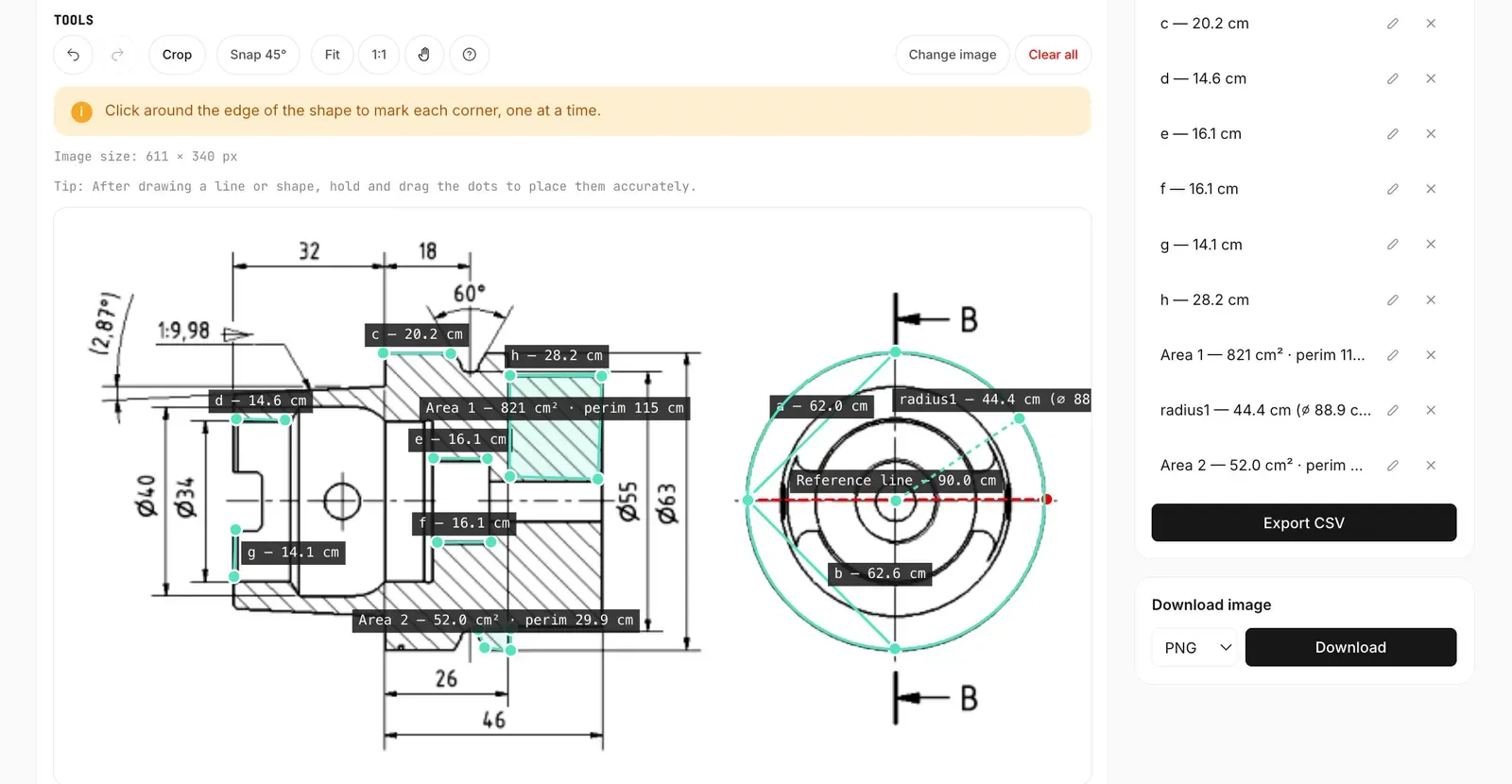
Trace the edge of a flat, irregular shape to calculate its area and perimeter.
Radius
Draw from the center of a round object to its edge to see both radius and diameter.
Crop & trim
Crop to the part of the photo you need before calibrating and measuring.
Undo, redo, snap to 45°
Correct a misplaced point, or snap new lines to horizontal, vertical, and 45° angles.
Export & download
Export all your measurements to CSV, or download the annotated image as PNG, JPG, or WebP.
Accuracy
How to get a more accurate result
The calculation is exact for the scale and points you set, but the real-world result is still an estimate. Camera angle, lens distortion and camera-tilt perspective can change how objects appear in a photo, and a single reference line cannot correct those effects.
- Keep everything on one plane. Put the reference beside the object, not closer to or farther from the camera.
- Photograph it straight on. Keep the camera parallel to the surface you are measuring, and avoid placing the target near the distorted edges of a wide-angle photo.
- Use a clear, long reference. A longer verified length makes small point-placement errors less significant.
- Zoom in before placing points. Drag the endpoints until they sit on the exact edges you want to compare.
Confirm dimensions with a physical measuring tool before making a cut, ordering a fitted part, or using a result for safety-critical work. If you find a repeatable problem with a measurement, tell us what happened.
About the tool
Pixels alone cannot tell you an object’s size
Last updated: September 5, 2026
A 500-pixel line could represent a few millimeters or several meters. The image does not know which. Calibration supplies the missing scale by pairing the pixel length of your reference line with the real length you enter. It is the same practical approach used in ImageJ’s Set Scale workflow.
photo scale = reference pixels ÷ known reference length
object length = object pixels ÷ photo scale
The editor applies that scale to every straight line, polygon, and radius you add. Area uses the same scale in two dimensions, so it is reported in square units. You can switch the display between millimeters, centimeters, meters, inches, and feet without calibrating again. For a quick check on metric conversions, see NIST’s guide to SI length units.
The editor reads the image you choose through the browser’s File API and does the measurement work locally; it does not send the image to our servers. When you finish, you can export the measurement list as CSV or download a copy with your annotations.
You can read more about how ImageHelperKit approaches simple, private image tools.
Use cases
When measuring from a photo is useful
Architects & floor plans
Use a known dimension on a floor plan to check other wall, doorway, or room measurements without opening CAD software.
Online resellers
Place a ruler beside a product when photographing it, then measure and label dimensions for a clearer listing.
DIY & home renovation
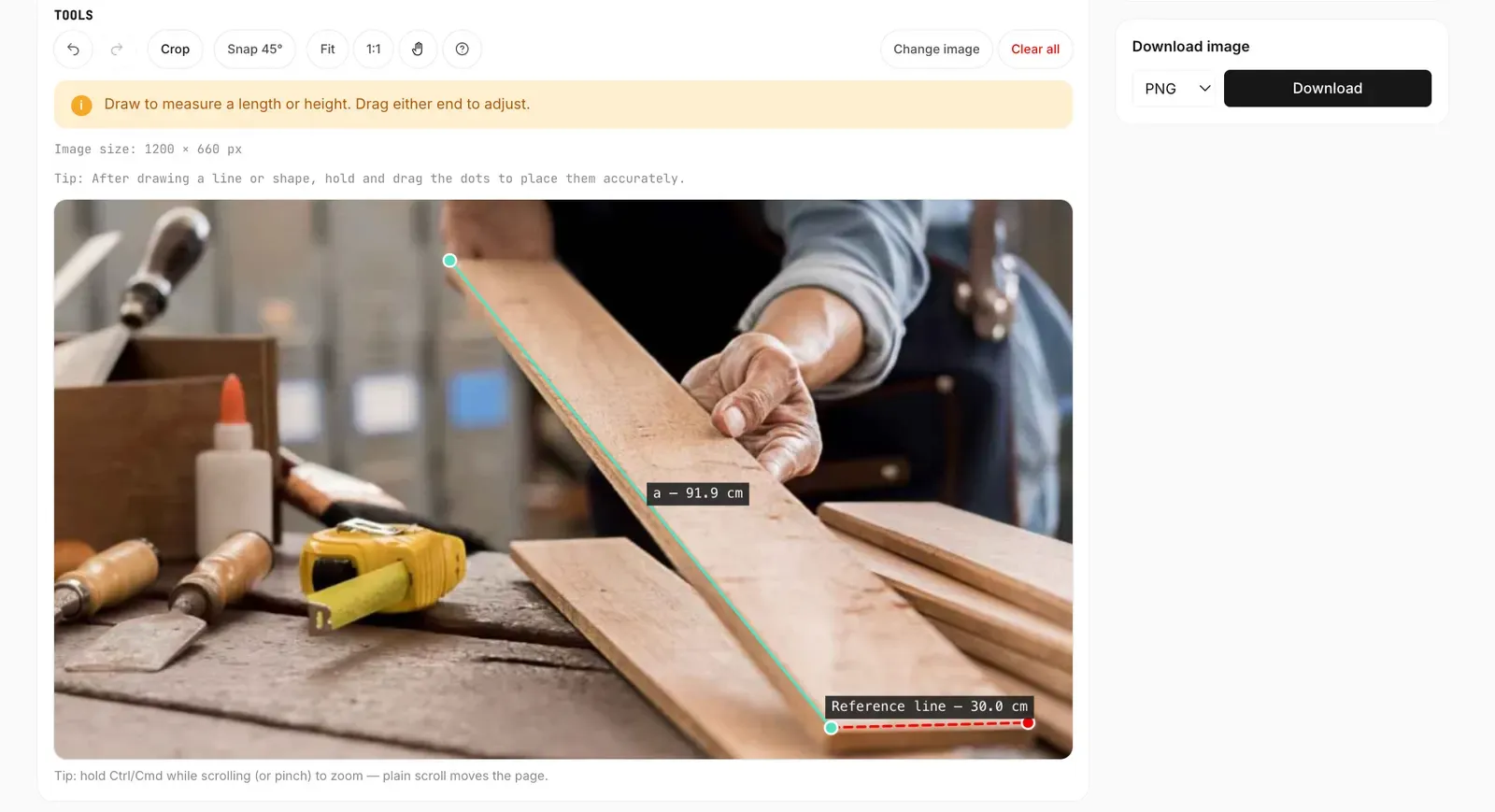
Take a straight-on photo with a ruler in frame to estimate a gap, shelf, tile, or piece of furniture.
Students & researchers
Use a scale bar or known reference to take repeatable measurements from fieldwork and documentation photos.
See it in action
Real measurements, taken from real photos
FAQ
Common questions.
How does the image measurement tool work?
The tool compares a line drawn in pixels with a length you already know. That creates a scale for the photo. It then applies the same scale to the lines and shapes you draw, converting them to millimeters, centimeters, meters, inches, or feet.
How do I measure an object in a photo or picture?
Add the photo, draw a reference line over something whose length you know, and enter that real length. Then choose Length/Height, Area, or Radius and draw over the object you want to measure.
Can the tool find an object’s real size without a reference?
No. A normal photo contains pixel dimensions but no reliable real-world scale. You need one known length in the image, or a dimension or scale bar on a plan, before the tool can calculate real measurements.
What makes a good reference object?
Use an object with a verified length and clear edges, such as a ruler placed beside the target. Make the reference line as long as practical, and keep the reference and target on the same flat plane.
How accurate are measurements taken from a photo?
They are estimates. Results depend on the known length being correct, careful placement of each point, camera angle, lens distortion, and whether the reference and target are the same distance from the camera. Confirm important or safety-critical dimensions with a physical measuring tool.
What is the difference between image size and object size?
Image size is the photo’s width and height in pixels. Object size is a real-world measurement such as 12 cm or 5 in. The editor shows the image’s pixel dimensions, while calibration is required to estimate the size of objects inside it.
Which measurements and units are supported?
You can measure straight-line length, width, and height; polygon area and perimeter; and circle radius and diameter. Display units are millimeters, centimeters, meters, inches, and feet, and you can switch units without redrawing.
Is my image uploaded to a server?
No. The image measurement tool processes everything in your browser using the Canvas API. Your photo never leaves your device.
Can I use the tool on a phone or tablet?
Yes. You can draw with touch controls and, when your browser supports camera access, take a photo directly. A larger screen can make precise point placement easier.
Which file formats can I use and export?
You can choose PNG, JPEG, and WebP images. Export measurements as a CSV file, or download the annotated image as PNG, JPG, or WebP.